
How it works
Four steps, and only two of them are the customer’s.
- You make the link. Open a saved report and tap Make link and QR code. Send the link from your phone’s messages, copy it, or show the QR code on the spot. Share PDF adds the QR code to the PDF too.
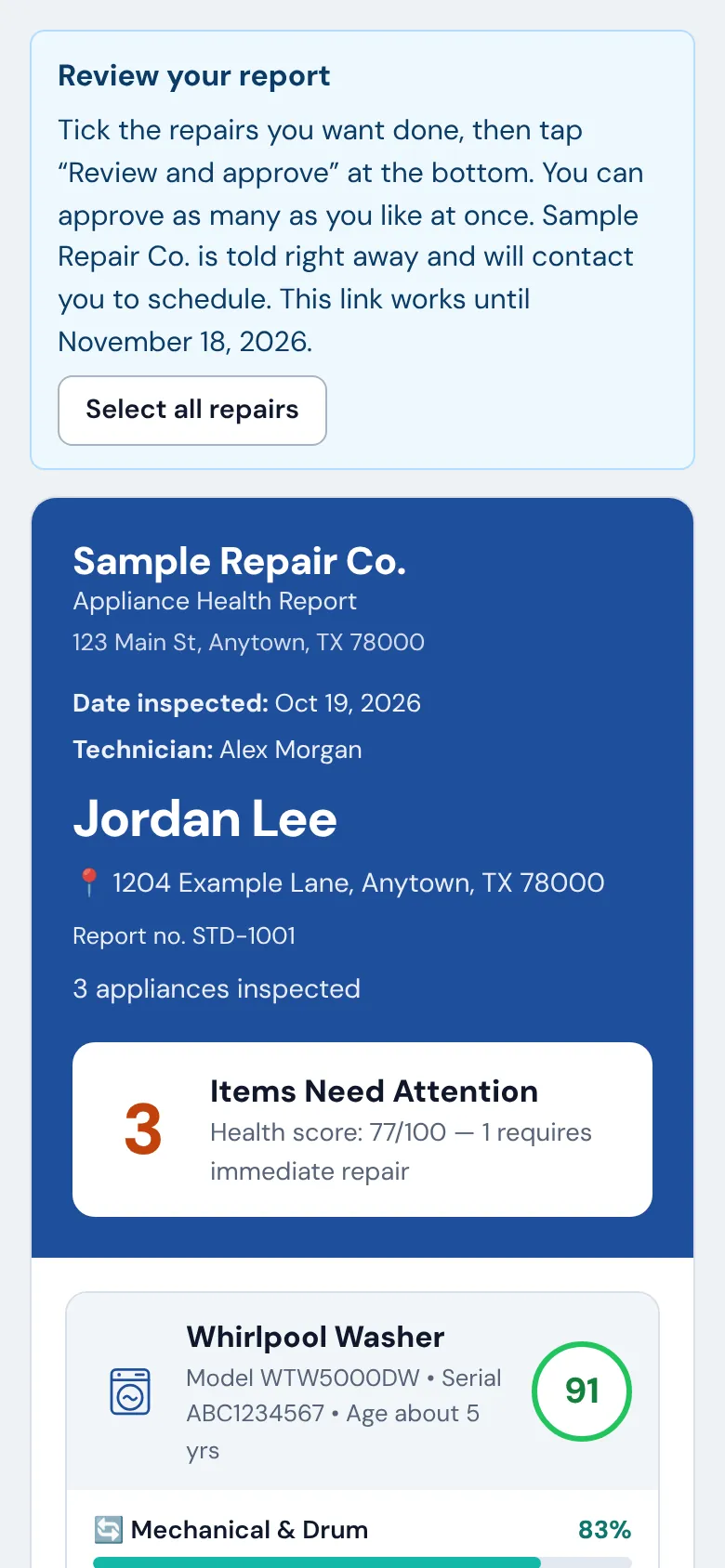
- The customer reads the report. It opens in their browser with your name on it: each appliance, what was found and what each repair costs.
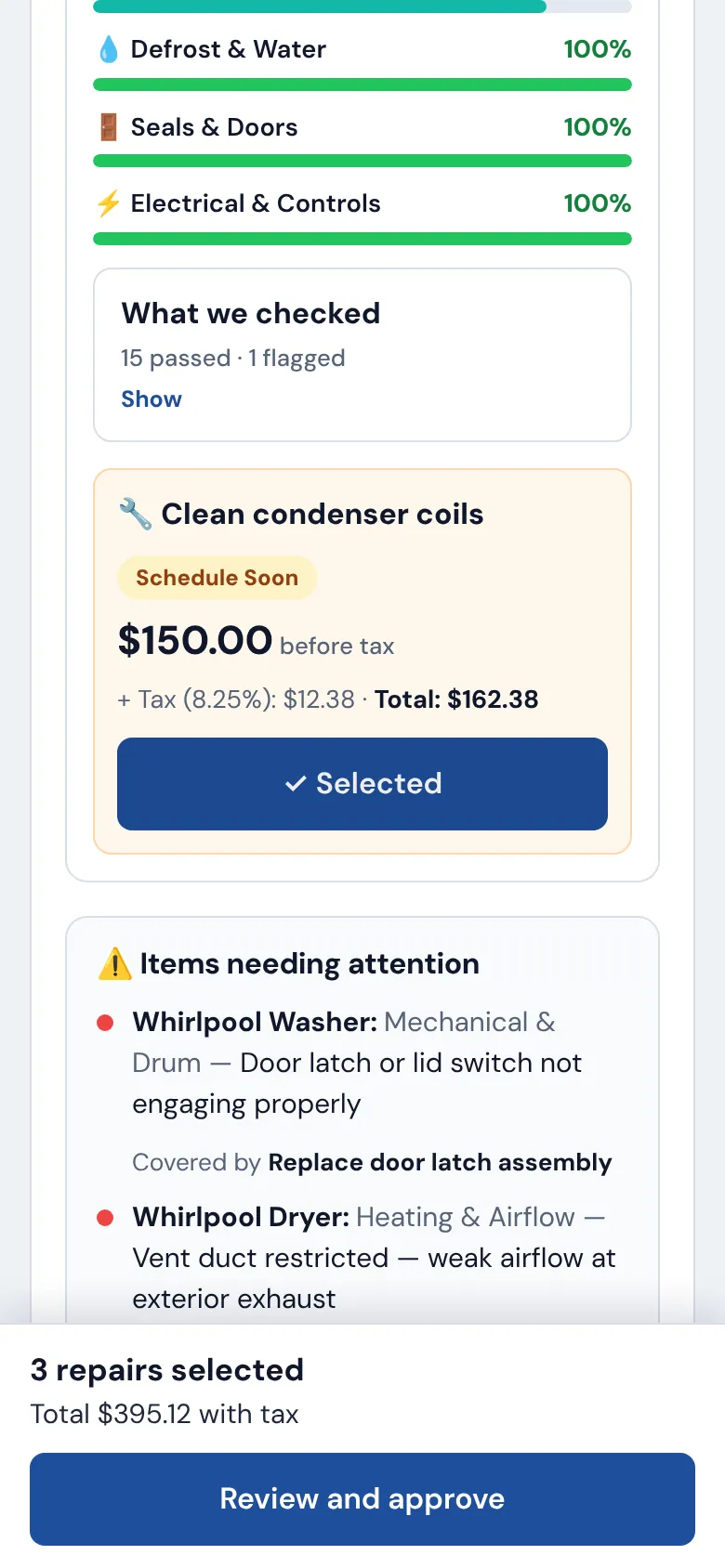
- They tick the repairs they want. A bar at the bottom shows how many are chosen and the total. If there is only one repair, they tap Approve this repair under it.
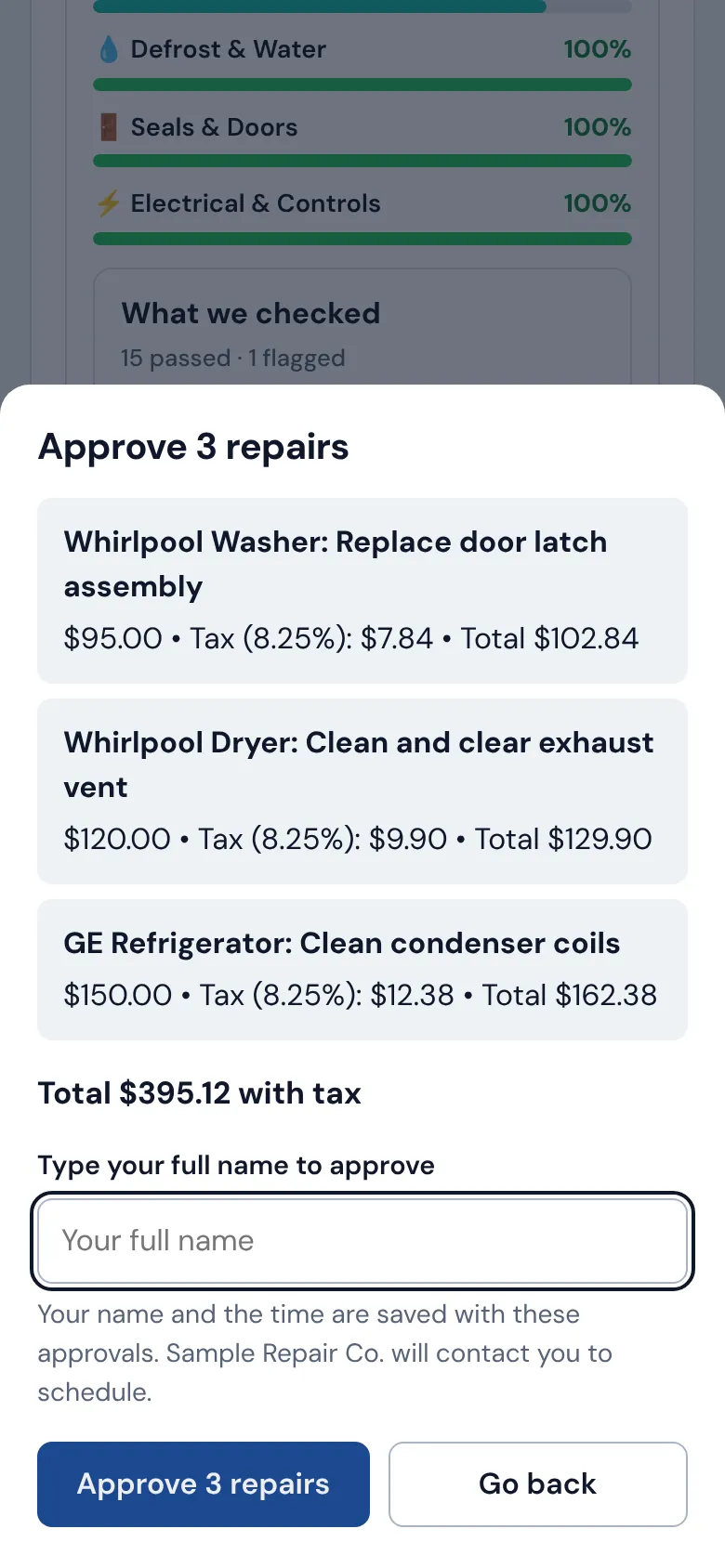
- They approve once. Review and approve opens one sheet with the chosen repairs and the total with tax. They type their full name, and every chosen repair is approved together.
What the customer sees
Made-up shop and customer. Real screens.
Then you hear about it
Your side of the approval.
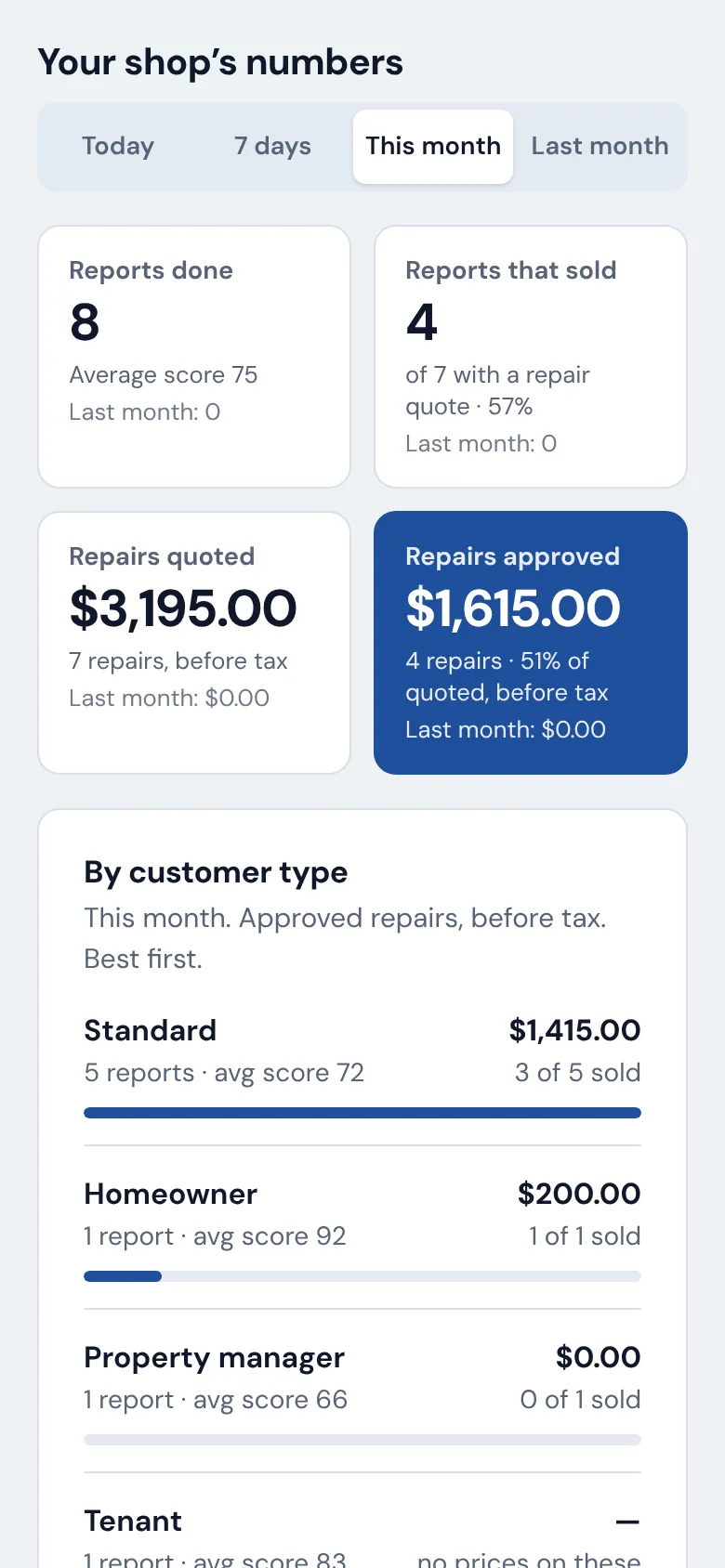
- An email goes to owners and managers the moment a customer approves: who, what, and the amount. Each person can turn their own emails off.
- New customer approvals shows on your Home screen, with a Call button if you saved the customer’s number.
- The report is tagged New approval in your list. Open it to see exactly who approved what and when.
- The name and the time are saved with each approval.
- Up to 30 repairs can be approved in one go. If two people in a household approve the same repair, it is counted once.
Good to know
- The customer page shows findings and prices, not photos. Photos stay in your copy of the report and the PDF.
- Customer links are for Standard and Homeowner reports. Property manager and Tenant reports are shared as PDFs.
- Nobody has to install anything or remember a password.
Questions about customer approval
Does the customer need an account or an app?
No. They open the link or scan the QR code in their phone’s browser. That is all.
How long does the link work?
A new link works for 30 days. You can add 30 more days at a time, up to 90 days out, or turn the link off whenever you like. Someone who opens an expired or turned-off link is told to contact your shop.
Can the customer see anyone else’s report?
No. Each link opens one report. A wrong or old code just says the link is not valid.
What if the customer approves by mistake?
Open the report, see who approved what and when, and withdraw the approval. It is also on the report if a customer phones to cancel.
What if I change a repair after the customer approved it?
The report warns you that it has changed since they approved, so you know their approval was for the earlier version.
Is a typed name a legal signature?
ScoreStack saves the name the customer types and the time with each approval, so you have a record of who said yes and when. It does not replace your own terms or paperwork.