
Inspect on a phone
A checklist for each kind of appliance, so every inspection covers the same ground.
- 12 appliance types with their own checklists: washer, dryer, refrigerator, freezer, dishwasher, wall oven, gas and electric range, gas and electric cooktop, microwave and ice machine. See every checklist.
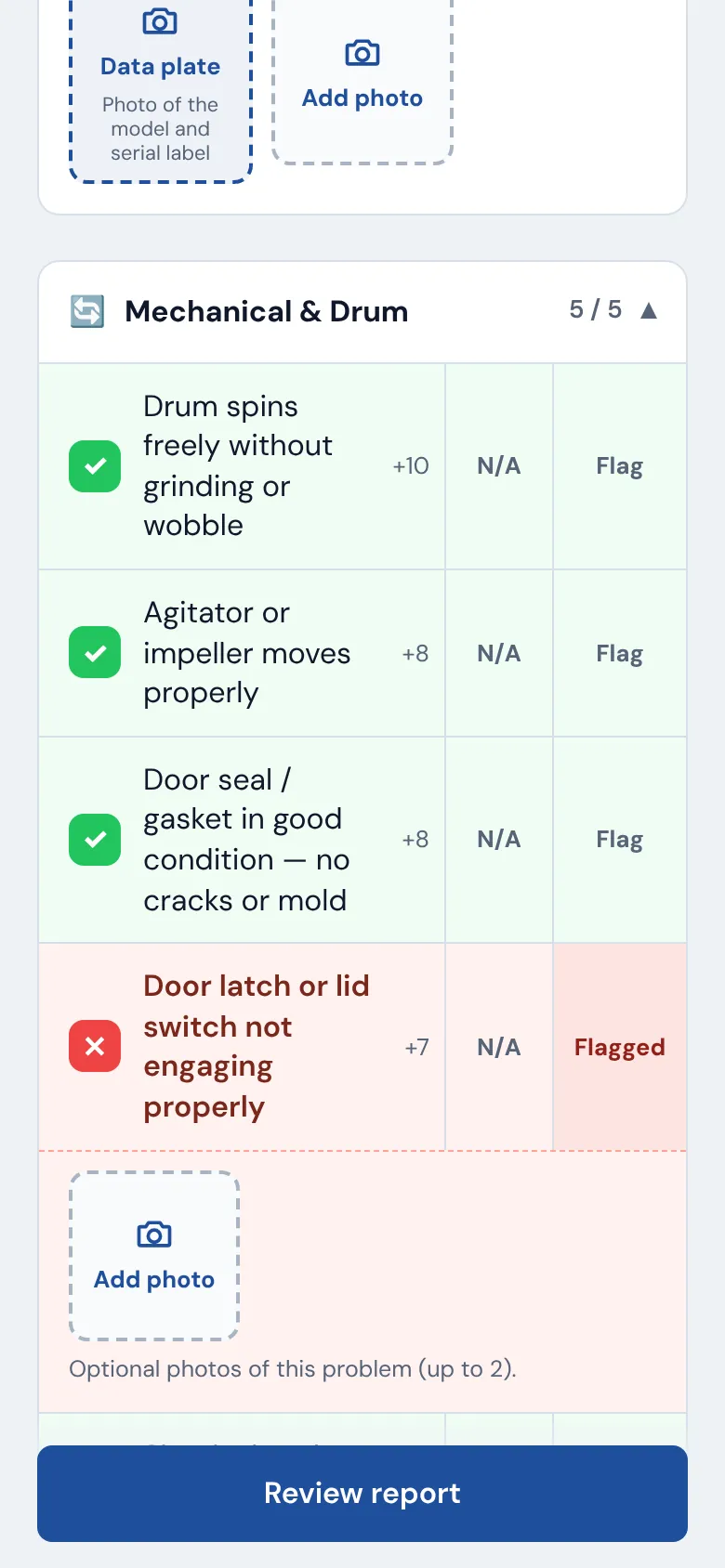
- Mark each item passed, flagged or not applicable. A flagged item can have its own note and photos.
- Photos from the app: the data plate first, then up to 6 per appliance, and up to 2 on each flagged item. Each photo is shrunk on the phone so it uploads fast.
- Brand, model, serial number and age on every appliance.
- If the signal drops, the inspection is saved on the phone and sent when it is back online.
A score for every appliance
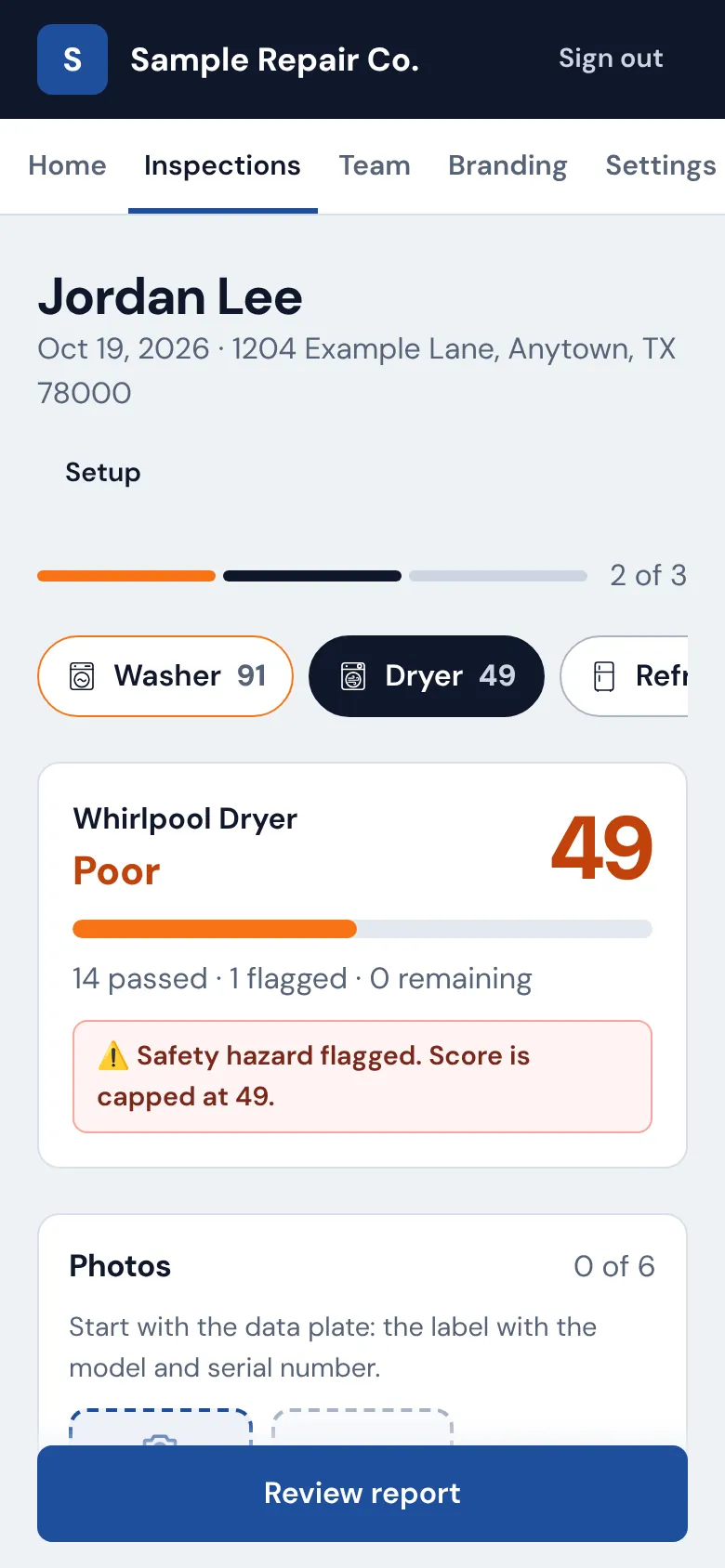
Each appliance gets a number from 0 to 100 and a plain rating, so the customer sees at a glance what needs attention.
Excellent, Good, Fair, Poor or Critical. The score comes from the checklist, so two technicians looking at the same machine land in the same place. Safety problems, like a blocked dryer vent or gas smell, cap the score so they can never hide behind good numbers elsewhere.
Repair estimates the customer can approve
Put the price next to the problem, in the same report.
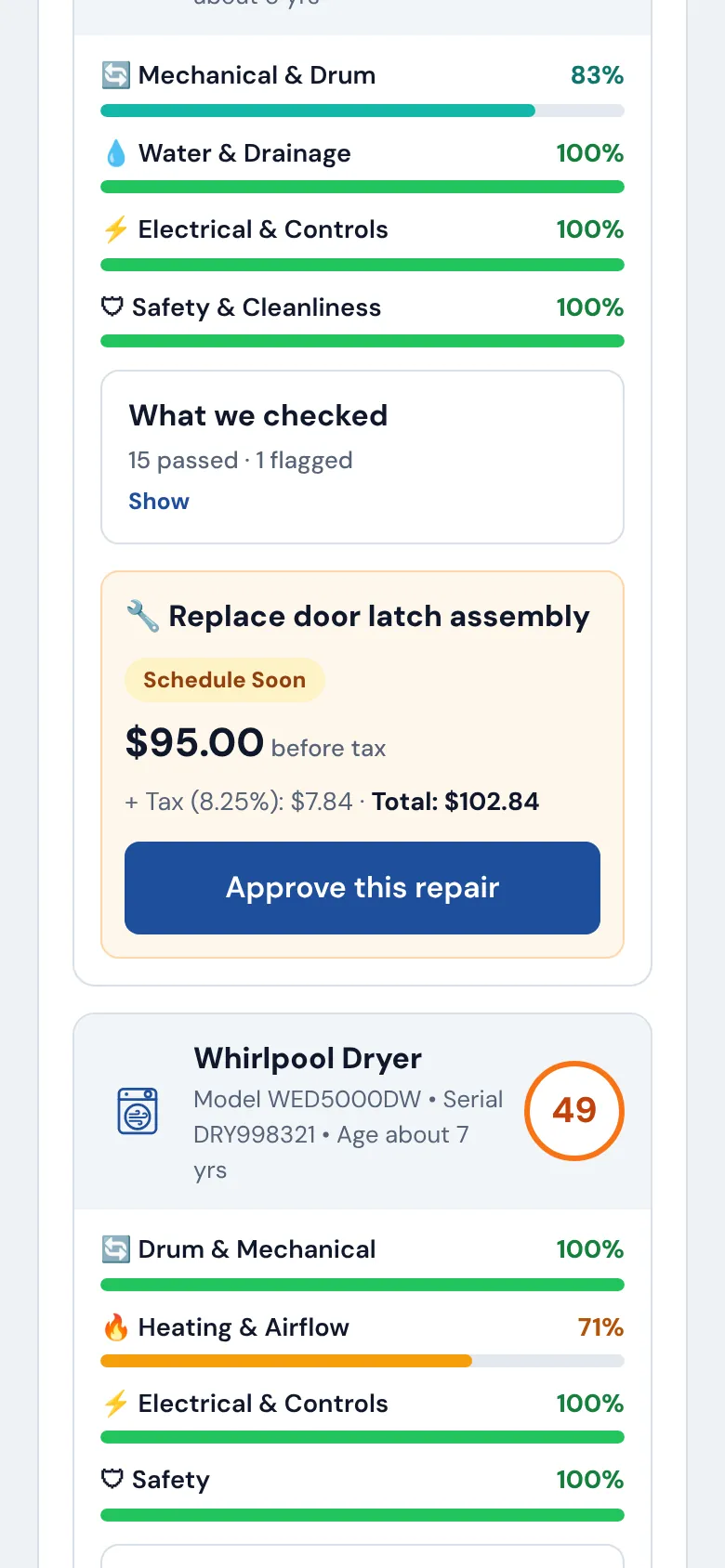
- Add a description and price for each repair. Sales tax is worked out from your shop’s rate.
- Label each one Repair now, Schedule soon or Monitor, so the customer knows what can wait.
- Say which findings a repair covers, so an error code or a leak rides with the repair that clears it.
- Not ready to price something? It shows Needs a quote instead of a blank.
- Add a Replace instead range, and the report shows what the repair costs next to a new appliance.
Reports with your name on them
The customer sees your shop, not ours.
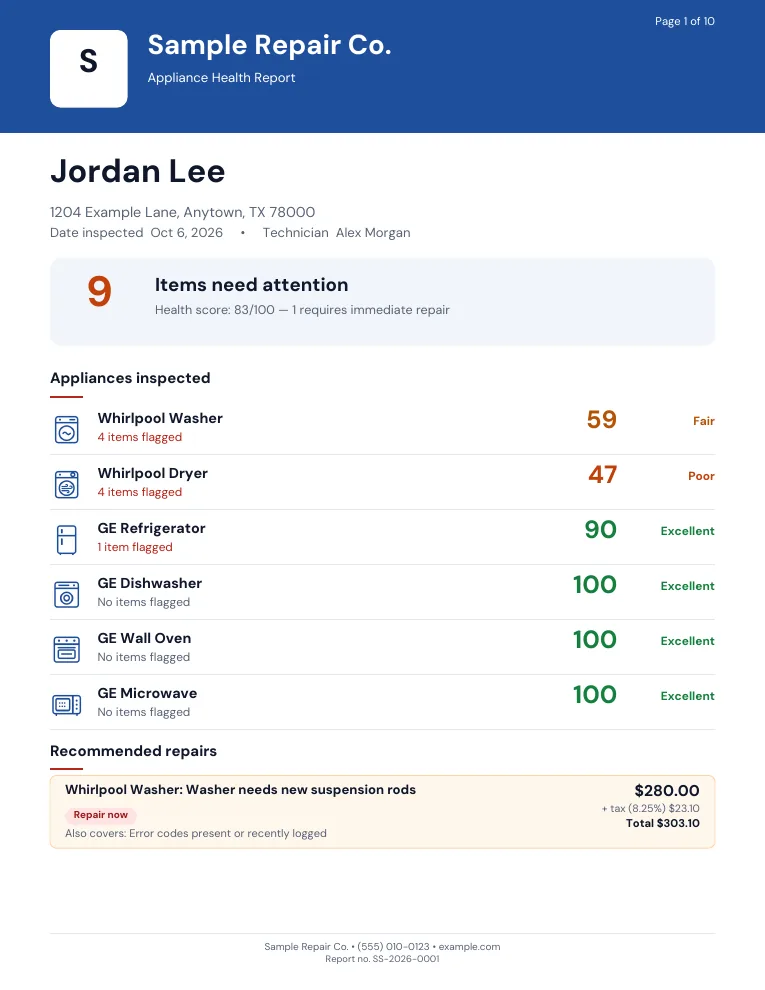
- Your logo and colors on the on-screen report, the PDF and the customer page (Pro and Premium).
- A PDF made from the same inspection: page one is the summary, each appliance starts on its own page, and the full checklist closes each one.
- A report number on every report, like STD-1001, so you can find it again by number.
- Four report types: Standard, Property manager, Tenant and Homeowner.
- Premium removes the “Powered by ScoreStack” badge.
Customer approval from a link
Send a link or show a QR code. The customer approves repairs on their own phone.
- No account and no app for the customer.
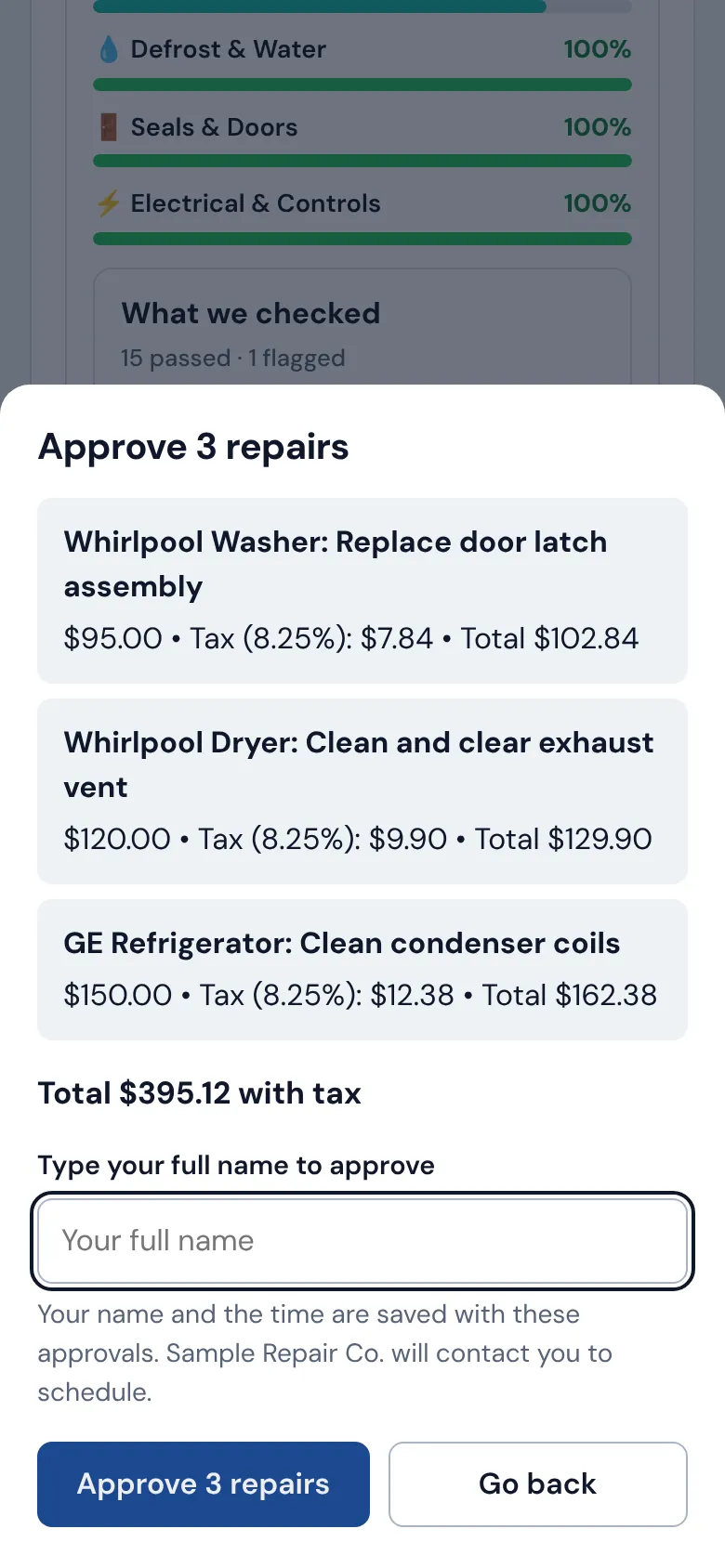
- They tick the repairs they want, see one total with tax, and approve once by typing their name.
- The name and the time are saved with each approval.
- You see New customer approvals on Home, with a Call button, and owners and managers can get an email.
- On Premium, ScoreStack can email the report link to your customer when you save the report, and remind them about repairs they have not approved. Customers can stop the reminders with one tap.
See what is working
Your Home screen adds it up as you go.
- Reports done, reports that sold, repairs quoted and repairs approved, for today, 7 days, this month or last month.
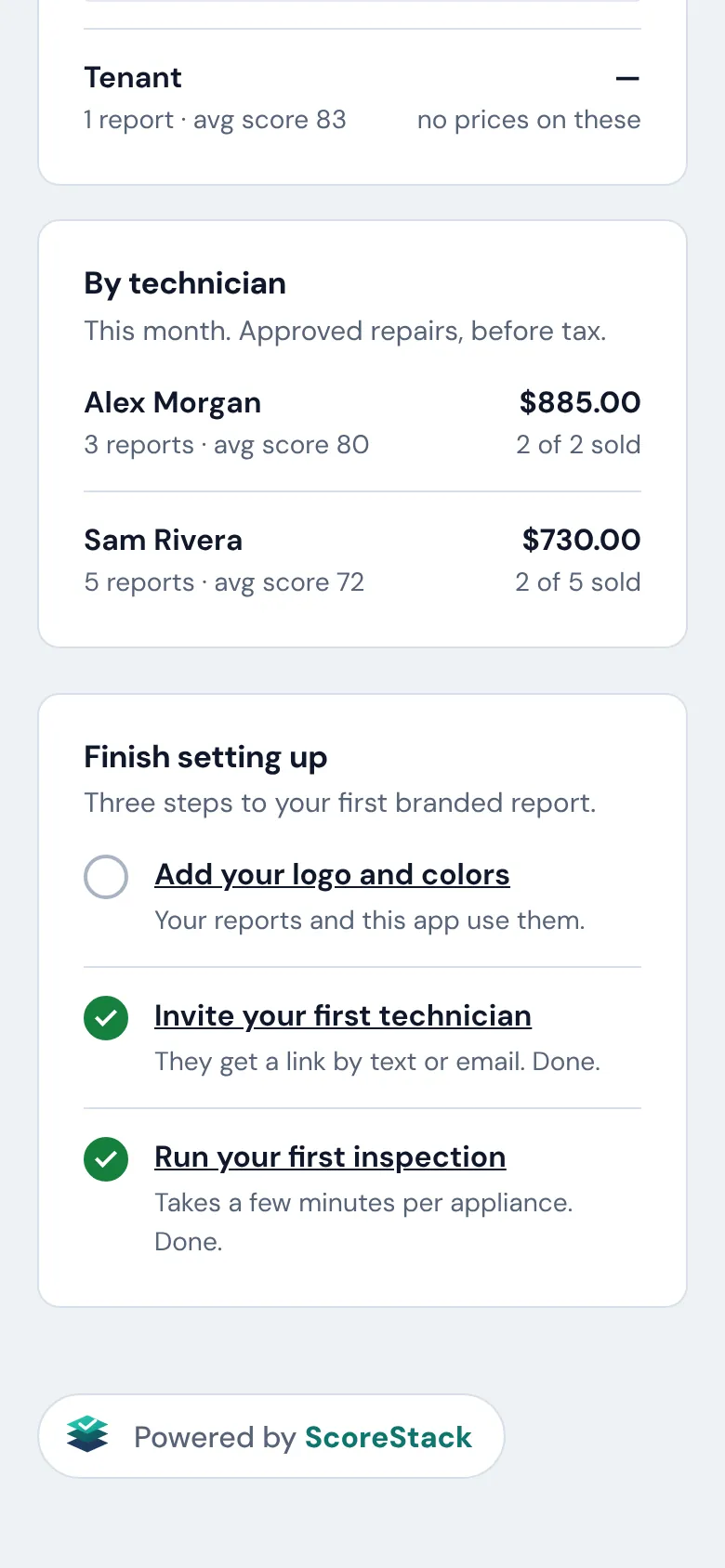
- By technician: reports, average score, approved dollars and how many sold.
- By customer type: see which kind of report earns the most.
Your team
Everyone gets their own sign-in.
- Invite technicians from the app. Starter allows up to 3, Pro up to 5 and Premium has no limit.
- Owners and managers can see every report and the numbers. Technicians see their work.
- Each person can turn their own approval emails on or off.
What ScoreStack does not do
It is the inspection and approval layer, not your whole back office.
ScoreStack does not schedule jobs, dispatch technicians or send invoices. Keep using the tools you already use for that. Here is how an inspection app and field service software fit together.